Making your own launch assets when you are the whole team
SnapShelf is a $49 one-time macOS 13+ app for producing launch assets solo: wrap product screenshots in gradient backgrounds for a Product Hunt gallery, export a demo GIF small enough to post, and cut social clips across five aspect-ratio options.
Last updated
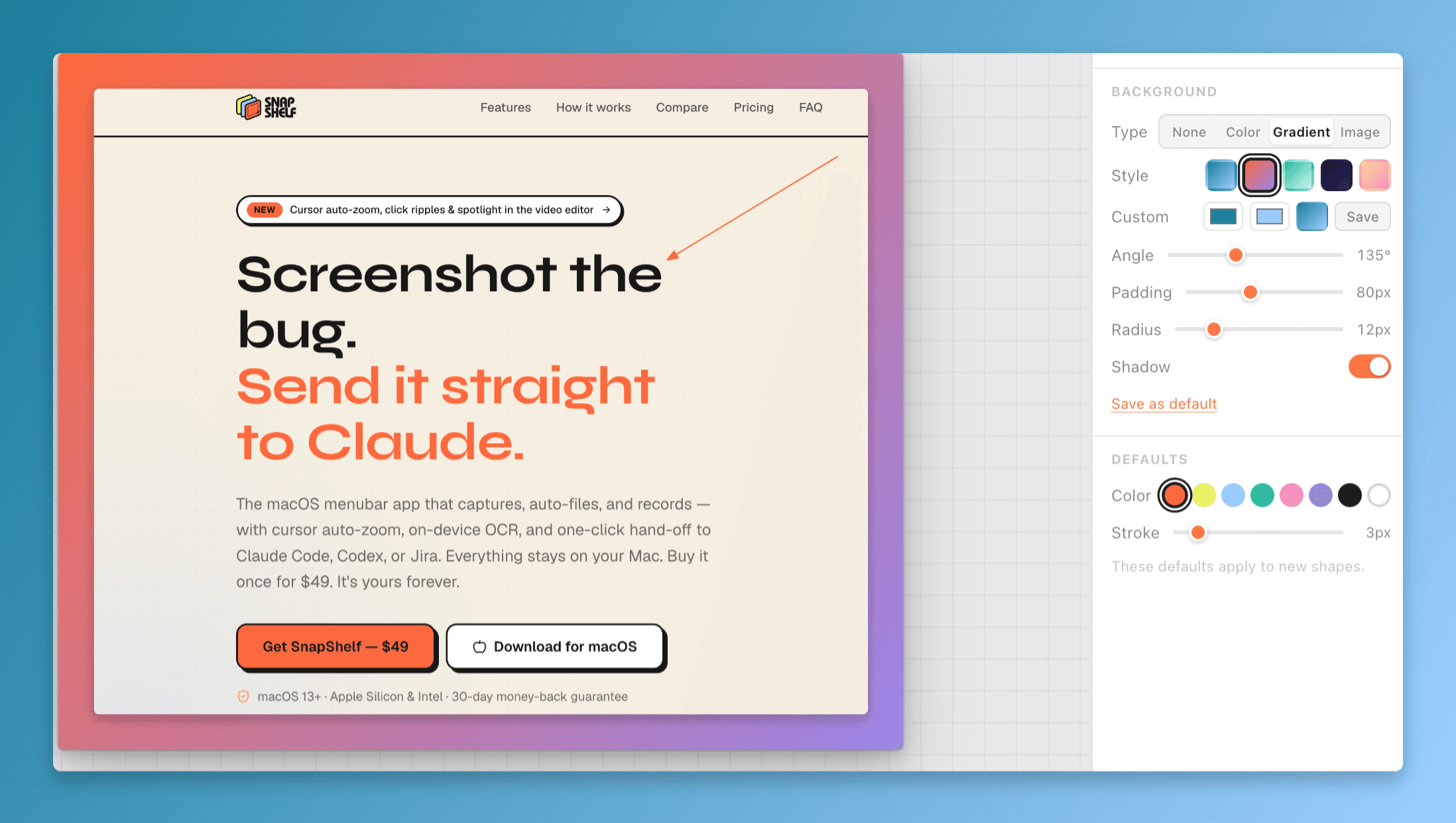
A product screenshot wrapped in a gradient background with padding, rounded corners, and a drop shadow, ready for a launch gallery.
The list nobody warns you about
You have built the thing. Two days before launch you discover the actual remaining work: a gallery of product images at the right dimensions, a hero screenshot for the landing page, a demo video, a GIF small enough to post in a reply, a square version for one network and a vertical version for another, and something to put in the launch-day email.
That is a designer’s afternoon, and you do not have a designer. What you have is a working product on your screen, which is genuinely most of what you need — raw screenshots of a good product are not far off usable. The gap is presentation: a raw window grab on a white background looks like a support ticket, not a launch.
The entire job is closing that gap without learning a design tool the week of launch.
The gradient background trick, and when to stop
The single highest-leverage move is wrapping a screenshot in a background: a solid colour or gradient, generous padding, rounded corners, and a drop shadow. It takes about twenty seconds in the background editor and it is why launch galleries all look a certain way — because it works. Pick one gradient and use it for every image in the set so the gallery reads as a designed sequence rather than eight unrelated screenshots.
You can also drop in your own image as the background, which is worth doing if you already have any brand asset at all. Consistency matters more than the specific choice.
Where to stop: do not annotate launch gallery images the way you would annotate a bug report. Arrows and callouts everywhere read as a manual, not a product. One short text overlay per image, at most. Check the current dimension requirements on Product Hunt directly before exporting — they change, and an image at the wrong ratio gets cropped badly at exactly the wrong moment.
The demo GIF that people will actually see
A GIF in a launch post or a reply gets watched. A link to a video does not. But a GIF also has to be small enough for the platform to accept, and the way you get there is by being ruthless about length, not by degrading the quality.
Aim for something under about eight seconds showing exactly one thing your product does that is not obvious from a still image. If your product does five interesting things, that is five GIFs, not one long one.
- 1Record just the interaction — no intro, no cursor wandering to find the menu, mic off
- 2Open it in the editor and check auto-zoom is punching in on the element that matters; turn it off if the whole screen is the point
- 3Trim to the frame where the interaction starts and the frame where the result lands, and nothing either side
- 4Speed the clip up slightly if there is any dead time you cannot cut
- 5Export the saved recording to GIF from the library, then paste it straight from the clipboard into the post
One recording, several formats
Do not record a separate video for each platform. Record the demo once, properly, then cut it. The editor exports five aspect-ratio options — Original, 16:9, 9:16, 1:1, and 4:5 — with black, colour, gradient, or blurred-video letterboxing, so a 16:9 demo can become a vertical clip without you re-shooting anything or the sides looking broken.
The realistic launch-day set from one twenty-minute recording session: a two-minute product demo as MP4 for the landing page and the launch post, a forty-second cut for the email, three short GIFs for replies and comments, and a vertical clip for wherever your audience is. Auto-Edit strips the silent gaps from the long version in one click, which is most of the editing you were going to do manually.
Add a background music track at low volume with a fade-in if the demo is silent. It is a small thing and it makes a silent screen recording feel produced rather than unfinished.
Being honest about what this is not
It is not a design tool. There is no vector editing, no logo work, no typography system, no layout canvas. If you need an actual designed graphic — a proper hero illustration, an OG card with a headline — that is Figma or Canva, and no screenshot app substitutes for it. SnapShelf makes your product screenshots look intentional; it does not make you a designer.
There is no share link and no hosting. Everything exports as a file to your Mac. You are uploading assets to Product Hunt and your own site yourself.
And macOS ⌘⇧4 plus ⌘⇧5 will get you raw captures for free. If your launch needs three screenshots and one clip, use them and spend the $49 on something else. The case for paying is the volume — a launch set is twenty-odd assets, produced under time pressure, and the difference between twenty seconds an asset and four minutes an asset is your launch-eve evening.
One practical note on the price: SnapShelf is $49 once with two years of free updates and a 30-day money-back guarantee. It is a one-time purchase, which is the correct shape of expense for someone whose product has not made any money yet.
Try SnapShelf
Free for 7 days, then $49 once — 2 years of free updates, no subscription, and everything stays on your Mac. 30-day money-back guarantee.
No account, no card · macOS 13+ · Apple Silicon & Intel
FAQ
Questions, answered
Everything you need to know before buying.
Wrap each one in a background — a gradient or solid colour with padding, rounded corners, and a drop shadow — and use the same background for every image in the set. It takes about twenty seconds per image in SnapShelf’s background editor and it is the difference between a gallery and a pile of screenshots. The background editor →
Stop hunting for screenshots. Start shipping.
Every capture filed, annotated, recorded with cursor auto-zoom, and one right-click away from your Claude Code session. Free for 7 days, then $49 once — yours forever.
30-day money-back guarantee7-day trial, no cardOne-time purchase2 years of free updatesLocal-only datamacOS 13+ · Apple Silicon & Intel