GIF for the issue tracker, PDF for the review
SnapShelf exports any screen recording as an optimised animated GIF and any set of screenshots as a multi-page PDF on macOS 13+, saving each next to the original and copying it to your clipboard.
Last updated
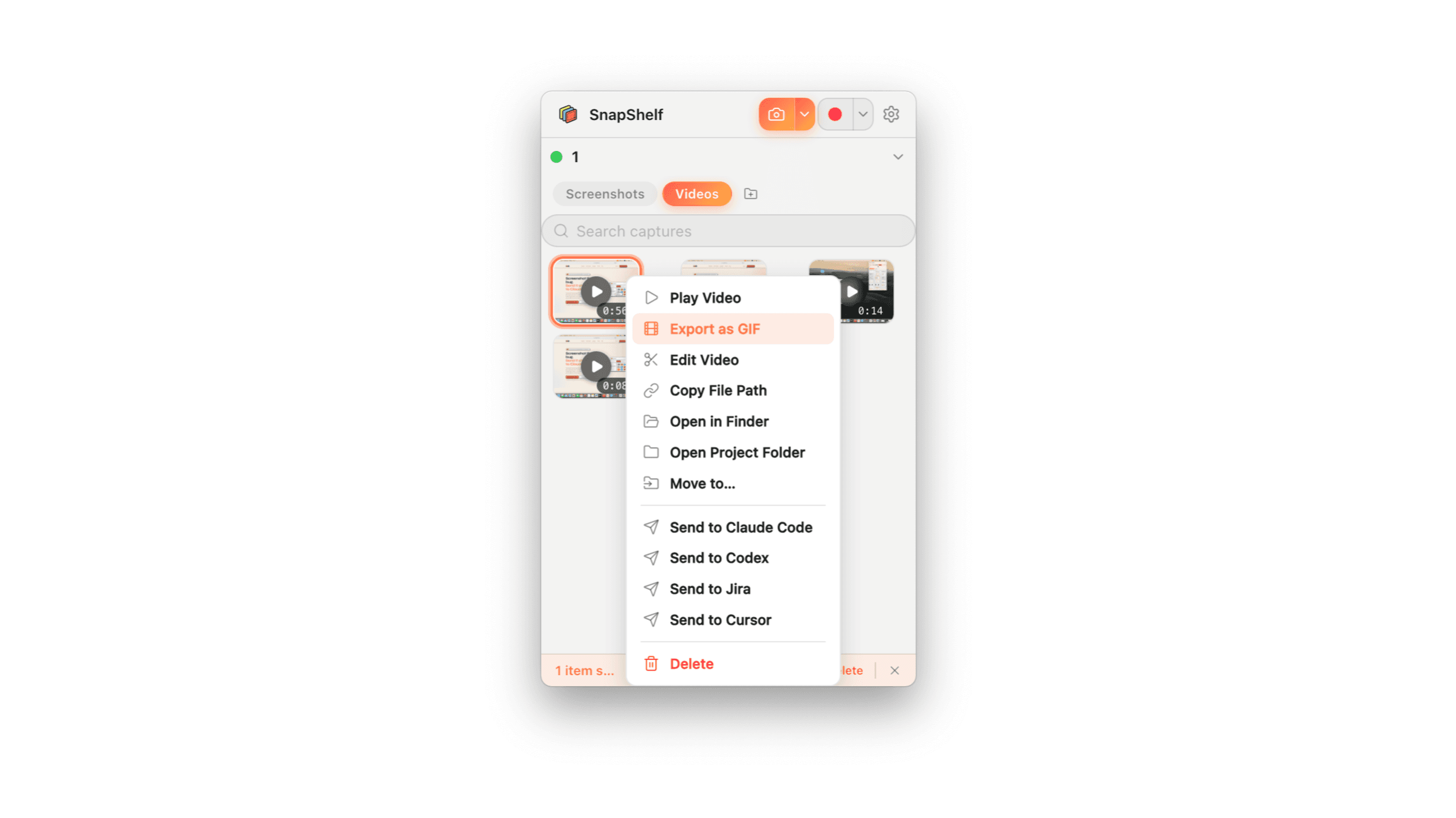
The export menu in SnapShelf with GIF selected on a trimmed recording, and the resulting file size shown before saving.
Why GIF still wins in a bug tracker
GIF is technically obsolete and practically undefeated in one specific place: an issue comment. Drop a GIF into GitHub, Linear, or Jira and it renders inline and plays automatically — no click, no player chrome, no "download to view". The person triaging your bug sees the repro while reading the sentence describing it. Attach an MP4 to the same comment and it becomes a link someone has to decide to open, which many will not.
That is the whole argument. A three-second GIF of the broken interaction, sitting above the stack trace, changes a bug report from a description into evidence. It is the single highest-leverage thing you can add to a bug report and it takes about ten seconds.
SnapShelf goes from recording to GIF in one action: select the saved recording in the library, Export → GIF, and the optimised file is written next to the original and copied to your clipboard. Paste it directly into the issue you were already writing. No intermediate file to locate, no conversion tool, no upload to a converter site with your product’s unreleased UI in it. Note the input: GIF conversion runs on a recording as saved, not on a timeline you have been editing, so if you cut something in the video editor, export that as MP4 first and convert the result. There is also a setting that produces a GIF automatically after every recording, off by default.
- 1Record the repro — keep it short and start just before the broken interaction
- 2Trim the dead air off the front and back in the editor and export as MP4, or skip straight to the saved recording
- 3Select the recording in the library and choose Export → GIF
- 4The optimised GIF is saved next to the original and copied to your clipboard
- 5Paste straight into the GitHub, Linear, or Jira comment
Keeping the file small enough to actually post
GIF has no interframe compression worth the name, so file size scales roughly with duration times pixel area times how much of the frame changes. Every issue tracker has an attachment limit, and an untrimmed full-screen thirty-second capture will sail past it. Three levers control this, in order of effectiveness.
Duration first. A GIF should show one thing: the moment before the bug, the interaction, the wrong result. Ten seconds is generous; thirty is almost always five seconds of evidence and twenty-five of you moving the mouse. Trim it in the editor, or let Auto-Edit strip the silent gaps and cut from there.
Then dimensions. Crop to the region that matters rather than exporting the whole display. A cropped GIF of the broken dropdown is both smaller and clearer than a full 5K desktop scaled down until the text is unreadable. Finally, motion: a static screen with one animated element compresses far better than a scrolling page, so if you can demonstrate the bug without scrolling, do.
The PDF path is a different tool for a different problem. Select several screenshots in the gallery and Export → PDF produces one multi-page document, reorderable before you save. It is images only — any video or GIF in the selection is skipped without comment, so check the page count matches what you picked. That is the right format for a design review, a QA report, or a step sequence that someone needs to read in order and comment on — a set of loose PNGs in an email thread is not a document.
What macOS gives you here — almost nothing
This is the biggest gap in the built-in tooling. macOS has no GIF export anywhere in the screenshot or QuickTime workflow. You can record with ⌘⇧5, and then you have a .mov and no supported path to an animated GIF without a third-party tool, a Shortcuts action someone else wrote, or a command-line ffmpeg invocation with palette generation flags you will look up every time.
The consequence is predictable: people upload their unreleased product UI to a random online MOV-to-GIF converter, because that is the path of least resistance. If you take nothing else from this page, take that one — a local conversion is worth setting up even if you never buy anything.
PDF is the reverse case. macOS is excellent at PDF. Select several images in Finder, right-click, Quick Actions → Create PDF, and you have a multi-page PDF for free. Preview will also let you reorder and delete pages afterwards. If your only need is combining screenshots into a PDF, macOS genuinely has you covered and you should use it.
How the alternatives handle it
CleanShot X ($29 one-time plus $19/yr for updates, verified July 2026, subject to change) does GIF export and does it fine. What it does not have is a timeline editor, so the trimming and cropping that determines whether your GIF fits under the attachment limit has to happen elsewhere. Snagit also exports GIF, on a $39/yr subscription since 2025, and brings cross-platform Windows support plus long-form documentation tooling if that matters to you.
Shottr and Xnapper do not export GIF — Shottr is free and scoped to still capture, Xnapper is focused on beautifying. CaptureShelf ($15) organises and does neither. Screen Studio ($89) is a dedicated recorder with deeper motion polish than SnapShelf, aimed at produced video rather than issue-tracker evidence.
SnapShelf’s specific claim on this one is narrow and checkable: recording, trimming, cropping, GIF export, and the clipboard hand-off all happen in one app, so the path from "I can reproduce it" to a GIF pasted in the issue has no file management in it.
Try SnapShelf
Free for 7 days, then $49 once — 2 years of free updates, no subscription, and everything stays on your Mac. 30-day money-back guarantee.
No account, no card · macOS 13+ · Apple Silicon & Intel
FAQ
Questions, answered
Everything you need to know before buying.
macOS has no built-in GIF export. In SnapShelf, select any saved recording in the library and choose Export → GIF; the palette-optimised file is saved next to the original and copied to your clipboard so you can paste it straight into a GitHub, Linear, or Jira comment. It converts the recording rather than an open edit, so export any timeline work as MP4 first.
Stop hunting for screenshots. Start shipping.
Every capture filed, annotated, recorded with cursor auto-zoom, and one right-click away from your Claude Code session. Free for 7 days, then $49 once — yours forever.
30-day money-back guarantee7-day trial, no cardOne-time purchase2 years of free updatesLocal-only datamacOS 13+ · Apple Silicon & Intel