Screenshots in docs are an asset until the release ships
SnapShelf is a $49 one-time macOS 13+ app for documentation work: auto-file captures directly into your docs repository’s image folder by app and window title, capture full-length config pages in one image, and keep a searchable gallery of every shot you have taken.
Last updated
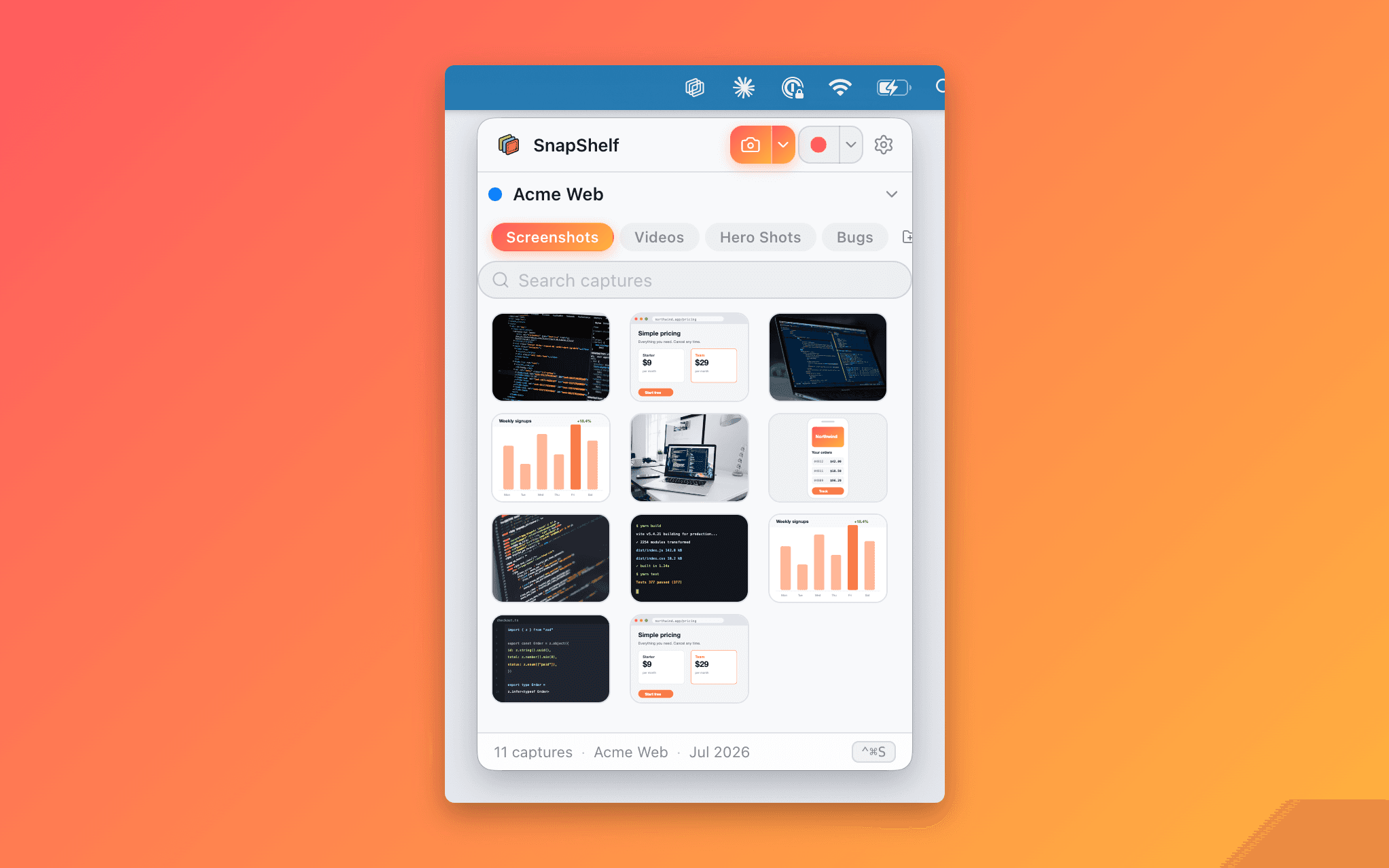
The searchable capture gallery filtered to one docs project, showing a consistent set of window captures from the last release pass.
Every screenshot you add is a maintenance commitment
A paragraph of documentation rots slowly. A screenshot rots the moment the design team changes a button colour, and it rots visibly — a reader who sees a UI that does not match their screen stops trusting the whole page, including the parts that are still correct.
This is why experienced technical writers are stingy with screenshots. Use one when the reader genuinely needs to recognise something on screen; use text and code blocks for everything else, because text is greppable, translatable, accessible, and diffable, and a PNG is none of those.
But when you do need one, you have signed up for re-shooting it on some future release. The whole game is making that re-shoot take two minutes instead of twenty.
Consistency is a set of decisions you make once
The reason a re-shoot is expensive is usually not the capture — it is reconstructing the conditions. What browser width was that? Light or dark mode? Which demo account? Was the sidebar collapsed?
Write those down in the docs repo before you take the first screenshot: a fixed window size, one theme, one seeded demo account with believable non-real data, no personal browser chrome, no notification badges. Every writer on the team then produces images that sit next to each other without looking like they came from four different products.
The other decision is redaction policy. Docs screenshots are public. If your demo data has anything resembling a real email address, an API key, or an internal hostname, blur it in the capture rather than trusting that nobody will zoom in. The annotation editor’s blur is rendered into the exported file, not layered over it.
Filing captures into the docs repo, not the Desktop
Documentation images live in version control alongside the Markdown that references them. The default macOS behaviour — everything to the Desktop with a timestamp name — means every screenshot needs a manual move and rename before it is usable, and that friction is why docs screenshots end up inconsistent.
- 1Open Settings → Rules and add a rule routing captures from your documentation browser profile or app to your repo’s image folder, for example ~/Projects/docs/static/img
- 2Set up the shot: fixed window size, correct theme, seeded demo account, no personal data visible
- 3Capture the window rather than a free region, so every image in the set has the same frame treatment
- 4Blur anything that would be embarrassing in a public repo, then annotate only if the reader genuinely needs a callout
- 5Commit the image with the docs change in the same pull request, so the text and the picture can never drift apart in review
Long pages, and the crop that loses the point
Configuration references, YAML files, settings pages, and long API responses are the screenshots most likely to be wrong, because they do not fit on screen and get cropped to the interesting third. The reader then cannot tell what else is in the file, which is often the actual question.
Scrolling capture stitches a long page into one tall image — web pages, documentation, code files, long Notion pages, and most standard macOS scroll views. For a config reference, one tall image of the whole file beats three crops with "..." between them.
Where the content is text rather than UI, though, do not screenshot it at all. Paste it as a code block. A screenshot of YAML is the single most common documentation mistake, and it makes the config uncopyable for every reader.
The release re-shoot pass
When a release changes the UI, you need to find every affected image fast. The searchable gallery keeps every capture you have taken, filterable by project and filename, so the set from the last pass is one search away and you can shoot the new versions against the old ones for comparison.
On-device OCR helps here in an unobvious way: extracting the text out of an old screenshot tells you what labels were on screen when you took it, which is exactly what you need to check whether a UI copy change has invalidated the image.
What this does not do
It does not detect stale screenshots. Nothing tells you that a PNG in your repo no longer matches the product — that remains a human review step at release time, and it is the hardest part of the job.
It does not automate capture. There is no scripted or headless mode, no CI integration, no Playwright-style "regenerate all docs screenshots on every build". If your screenshot set is large enough that manual re-shooting is unsustainable, an automated browser screenshot pipeline is the right answer and SnapShelf is not it.
And it has no CMS integration. Snagit has deeper long-form documentation templates and step-capture workflows if that is the shape of your work; SnapShelf is faster and native, but it is a capture tool, not a documentation system.
Try SnapShelf
Free for 7 days, then $49 once — 2 years of free updates, no subscription, and everything stays on your Mac. 30-day money-back guarantee.
No account, no card · macOS 13+ · Apple Silicon & Intel
FAQ
Questions, answered
Everything you need to know before buying.
Add an auto-filing rule in SnapShelf’s settings that routes captures from your documentation browser or app to the repo’s image folder. SnapShelf reads the frontmost app and window title on capture, applies the rule, and files the image with a consistent name. No rules ship by default, so nothing is routed anywhere until you add one — and anything that matches no rule goes to your active project’s screenshots folder rather than being lost. How auto-filing rules work →
Stop hunting for screenshots. Start shipping.
Every capture filed, annotated, recorded with cursor auto-zoom, and one right-click away from your Claude Code session. Free for 7 days, then $49 once — yours forever.
30-day money-back guarantee7-day trial, no cardOne-time purchase2 years of free updatesLocal-only datamacOS 13+ · Apple Silicon & Intel