How to stop screenshots saving to your Desktop on Mac
Press ⌘⇧5, click Options, and pick a folder under “Save to” — or run `defaults write com.apple.screencapture location ~/Pictures/Screenshots` followed by `killall SystemUIServer`. Both change where every macOS screenshot lands.
Last updated
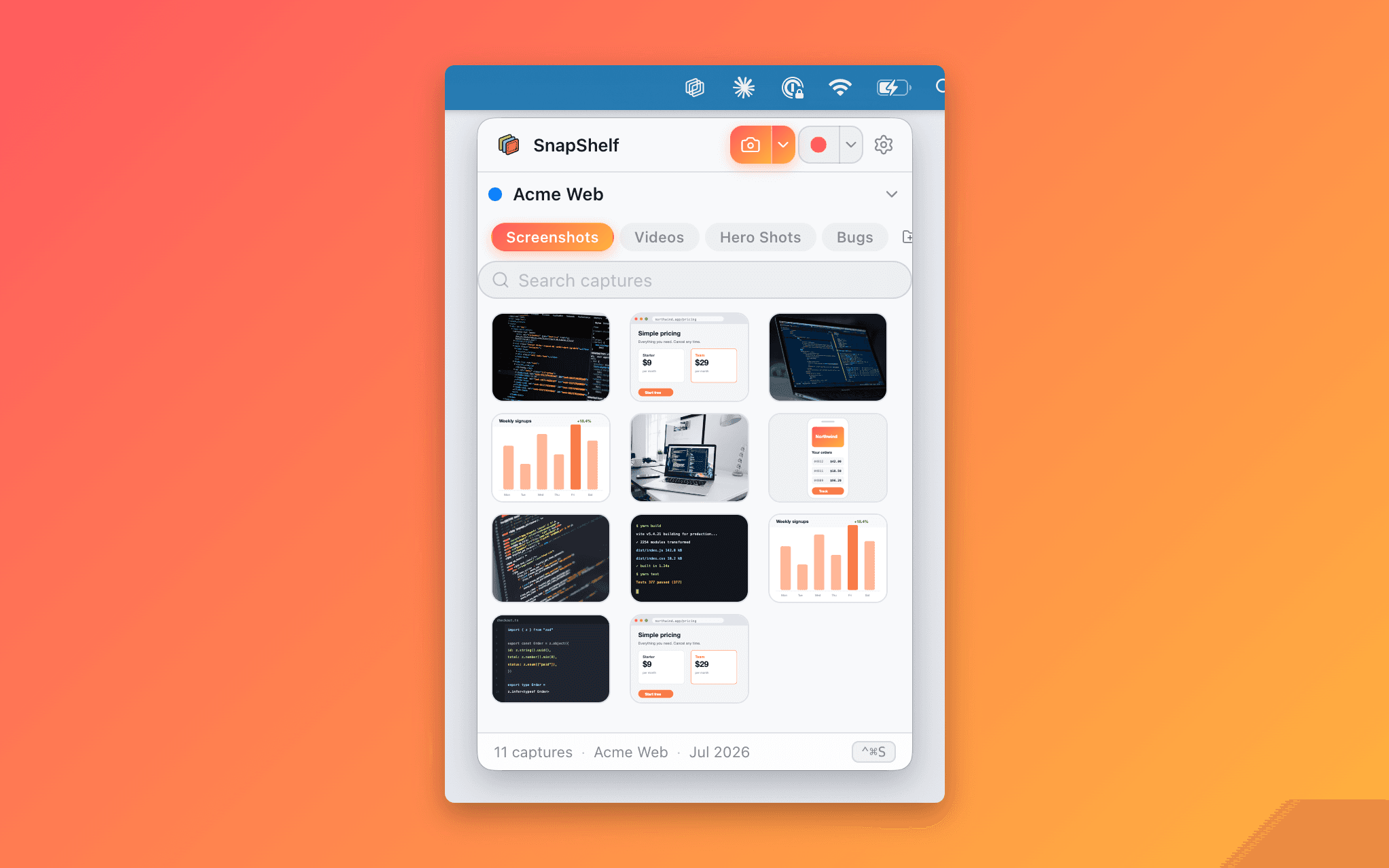
A SnapShelf gallery grouped by project shelf, with the search field filtering captures by filename.
The fastest fix: the ⌘⇧5 Options menu
macOS has shipped a built-in answer to this since Mojave, and most people never find it because it lives behind a screenshot toolbar rather than in System Settings. You do not need a third-party app to move your screenshots off the Desktop.
Press ⌘⇧5. A capture toolbar appears along the bottom of the screen. Click Options and the top group of the menu is “Save to” — Desktop, Documents, Clipboard, Mail, Messages, Preview, and Other Location. Pick a folder and every screenshot from that moment on goes there instead.
One thing to know before you do it: “Save to” is a single global setting shared by ⌘⇧3, ⌘⇧4, and ⌘⇧5. There is no per-shortcut destination. Changing it here changes it everywhere.
- 1Create the folder you want first — in Finder, ⌘⇧N inside ~/Pictures and name it Screenshots.
- 2Press ⌘⇧5 to bring up the screenshot toolbar.
- 3Click Options in the toolbar.
- 4Under “Save to”, choose Other Location.
- 5Select your new folder and click Choose.
- 6Press Escape to dismiss the toolbar, then take a test screenshot with ⌘⇧4 and confirm it lands in the new folder.
The terminal route, and why you might prefer it
The ⌘⇧5 menu writes to the same preference domain you can set directly. If you script your Mac setup, keep a dotfiles repo, or are configuring a machine over SSH, the terminal is the better route because it is repeatable.
The setting lives in `com.apple.screencapture` under the key `location`. Write it, then restart the process that reads it:
The `killall SystemUIServer` line is the part people miss. Without it the preference is written but the running screenshot service keeps using the old value until you log out, which makes it look like the command silently failed. It did not — it just has not been picked up yet.
Use a full path or a path starting with `~`. A relative path will be written literally and screenshots will quietly stop appearing anywhere useful. If that happens, run `defaults read com.apple.screencapture location` to see exactly what the system thinks the destination is.
To undo everything and go back to stock behaviour, run `defaults delete com.apple.screencapture location` and `killall SystemUIServer` again.
- 1Open Terminal (or iTerm).
- 2Create the destination if it does not exist: `mkdir -p ~/Pictures/Screenshots`
- 3Set the location: `defaults write com.apple.screencapture location ~/Pictures/Screenshots`
- 4Apply it: `killall SystemUIServer`
- 5Verify with `defaults read com.apple.screencapture location`
- 6Take a screenshot with ⌘⇧3 and confirm the file appears in the new folder.
Four more screencapture defaults worth knowing
While you are in that preference domain, there are a handful of other keys that fix the other common annoyances. Each one needs the same `killall SystemUIServer` afterwards to take effect.
`defaults write com.apple.screencapture type jpg` changes the format from PNG to JPEG. Useful if you screenshot a lot of dense UI and your folder is ballooning — accepted values include png, jpg, pdf, tiff, and heic.
`defaults write com.apple.screencapture disable-shadow -bool true` removes the large transparent drop shadow macOS adds around window captures. That shadow adds substantial empty margin to every ⌘⇧4-then-Space capture, which matters when you are pasting into a doc.
`defaults write com.apple.screencapture name "Shot"` changes the filename prefix from “Screenshot” to whatever you want. And `defaults write com.apple.screencapture include-date -bool false` drops the timestamp entirely, giving you Shot.png, Shot 1.png, and so on.
Everything above is reversible with `defaults delete` on the same key. None of it requires an app, a login, or a payment.
Where the built-in fix stops being enough
Here is the honest limitation, and it is worth understanding before you start looking at tools. macOS gives you exactly one screenshot destination. Not one per app, not one per project — one, globally, for every capture you will ever take.
That is a genuine improvement over a Desktop covered in files. But it converts one messy folder into a different messy folder. If you work across three clients, or five repos, or a design project and a support queue at the same time, every capture from all of them lands in the same directory with a filename that describes when you took it and nothing about what it was.
Two weeks later you are scrubbing through 400 files named by timestamp trying to find the one screenshot of the staging error. The date does not help, because you remember the bug, not the Tuesday.
The two free workarounds are both partial. You can change the location manually every time you switch projects — nobody sustains that past the second week. Or you can file everything afterwards, in batches, which is real work you will keep postponing.
The missing piece is context. At the instant you press ⌘⇧4, macOS knows which app was frontmost and what that window was called. It just does not use that information for anything, because `com.apple.screencapture` has one field for a destination and no concept of a rule.
Rules instead of one folder
This is the specific gap SnapShelf fills. It is a macOS 13 Ventura+ menubar capture app, $49 one-time, that reads the frontmost app and window title at capture time and routes the file to a folder based on rules you write.
A rule looks like “app is Xcode → ~/Projects/MyApp/Screenshots”. Take a screenshot while Xcode is in front and it is already named and filed by the time you switch windows. On-device OCR acts as a fallback when the window title alone is not enough to decide. Nothing ships pre-configured — the rule list starts empty, so no capture is routed anywhere until you write the first one. Anything that matches no rule lands in your active project’s screenshots folder rather than disappearing, or in a project called “My Captures” that the app creates for you if you have not made one — so nothing is lost while you are still tuning.
Every capture is also on your clipboard the moment you take it, so the file being tidily filed somewhere never costs you the paste you actually wanted.
To be clear about the trade-off: if one folder genuinely solves your problem, the terminal command above is free and you should stop reading here. The case for a tool starts when the number of contexts you switch between makes a single destination the bottleneck.
Try SnapShelf
Free for 7 days, then $49 once — 2 years of free updates, no subscription, and everything stays on your Mac. 30-day money-back guarantee.
No account, no card · macOS 13+ · Apple Silicon & Intel
FAQ
Questions, answered
Everything you need to know before buying.
To your Desktop, named “Screenshot [date] at [time].png”. macOS has used the Desktop as the default since long before the ⌘⇧5 toolbar existed, and it has never changed — which is why the folder fills up so reliably.
Stop hunting for screenshots. Start shipping.
Every capture filed, annotated, recorded with cursor auto-zoom, and one right-click away from your Claude Code session. Free for 7 days, then $49 once — yours forever.
30-day money-back guarantee7-day trial, no cardOne-time purchase2 years of free updatesLocal-only datamacOS 13+ · Apple Silicon & Intel