Answering tickets with a picture instead of a paragraph
SnapShelf is a $49 one-time macOS 13+ app for support work: annotate the exact control a customer needs to click, blur account data before the image leaves your Mac, and extract error text from a customer’s screenshot with on-device OCR.
Last updated
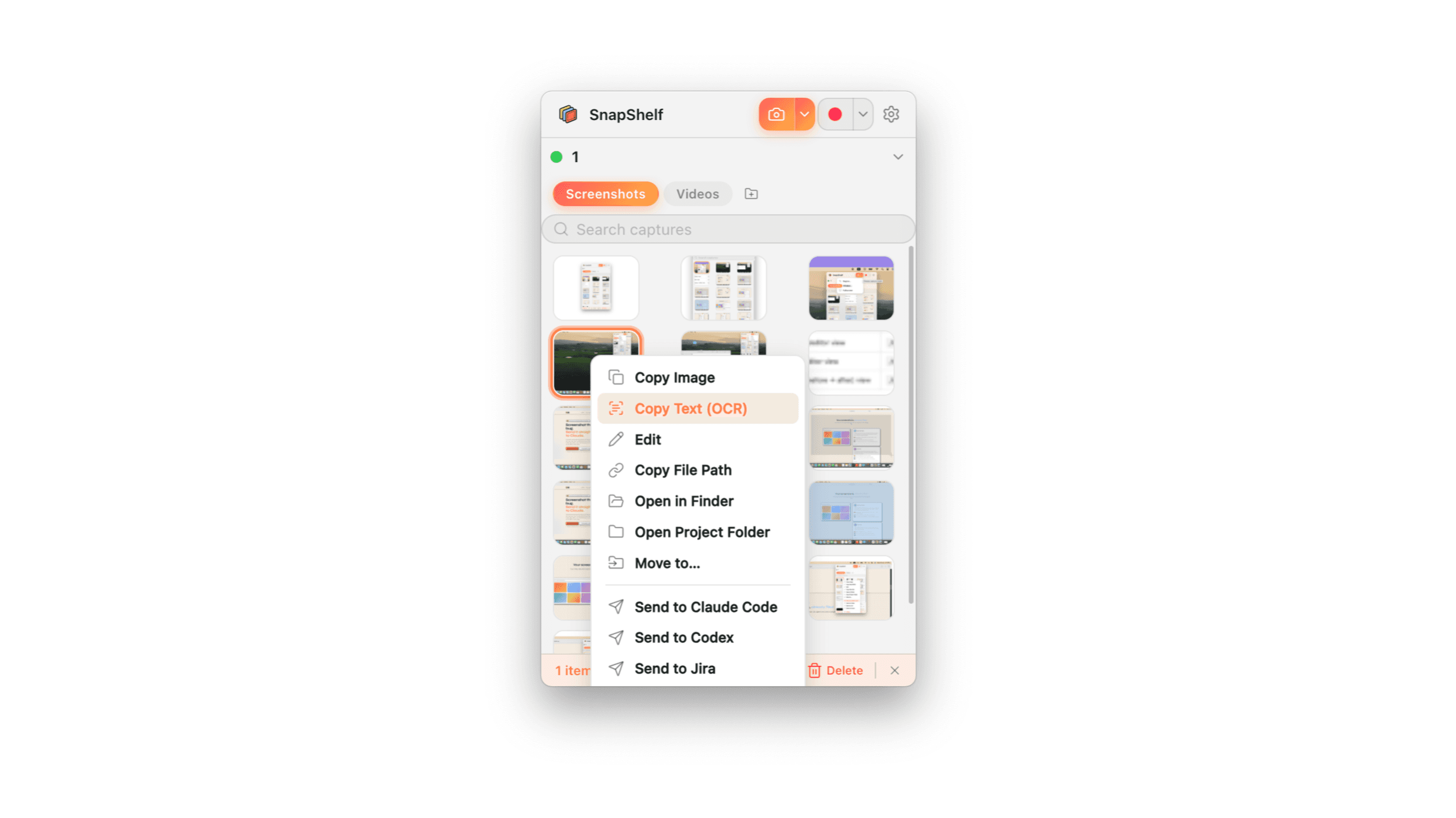
On-device OCR pulling an error string out of a customer’s screenshot, with the recognised text ready to paste.
Screenshots go both ways in a support queue
Everyone thinks about the outbound direction: you explain where a setting is, and an annotated screenshot does it in one image instead of four sentences of "click the gear icon in the top right, then Account, then scroll down". That is real, and it is most of the value.
The inbound direction is the one that quietly eats time. A customer sends a photo or screenshot of an error dialog. You need that error string to search your logs, your internal docs, and your ticket history — and it is trapped in an image. So you squint at it and retype it, and half the time you mistype a UUID and find nothing.
A support tool has to be good at both. They are different problems with different fixes.
Outbound: redaction is not optional
Support agents work inside real customer accounts. Any screenshot you take of an admin panel, a subscription page, or a session replay has someone’s email, name, billing address, or account ID in it. Sending that to a different customer is a data incident, and it happens because redaction was one step too many.
The blur tool in the annotation editor is the same two clicks as drawing an arrow, which is the only reason people actually use it. Drag over the region, and the blur is rendered into the exported image — it is not a black rectangle sitting on top of readable pixels that someone can strip out of the file. That distinction matters more than it sounds; layered redaction has leaked real data more than once across the industry.
The working habit: blur first, annotate second, then copy. Doing it in that order means you never have an un-redacted version on your clipboard.
Composing a reply that answers in one image
This is the sequence for the "where is the setting" ticket, which is probably a third of most queues.
- 1Reproduce the customer’s screen in a test account if you have one — capture the window, not the region, so the customer sees a frame they recognise
- 2Blur any account identifiers, email addresses, or billing details still visible
- 3Draw an arrow at the control, and add a step badge per click if the answer is more than one step
- 4Add short text labels rather than relying on the arrow alone — the image gets forwarded and resized
- 5Paste straight into Zendesk, Intercom, or Help Scout — the capture is already on your clipboard, so there is no file to find and attach
Inbound: getting the error string out of the customer’s image
Right-click the customer’s attachment in SnapShelf and choose Copy Text (OCR). Recognition extracts the text and copies it to your clipboard, ready to paste into your log search or your internal knowledge base. It handles error dialogs, terminal output, and screenshots of documents, and it runs entirely on your Mac — the customer’s image itself is never uploaded, which matters when it contains their data rather than yours. The one network call involved is the first OCR you ever run, which fetches a few megabytes of language model and then never needs it again.
The practical win is accuracy, not speed. Retyping a stack trace or a correlation ID by hand has a real error rate, and a mistyped ID returns zero results, which looks identical to "this never happened".
The volume problem, and where this stops helping
Support is a throughput job. Saving forty seconds on a reply matters because you write ninety of them a week. The compounding win here is not any single feature — it is that captures are auto-filed and searchable by filename and project, so the annotated screenshot you made for the SSO setup question in March is still findable in July and can be reused instead of remade.
What it does not do: there is no macro library, no canned-response system, and no integration with your help desk. SnapShelf produces an image and puts it on your clipboard. Zendesk still owns the macro.
There are also no share links, so a long walkthrough goes to the customer as an attached MP4 or GIF rather than a URL. For most help desks that is fine — attachments are normal. If your team relies on sending a share link for everything, CleanShot X has that today and SnapShelf does not.
And it will not stop the same ticket arriving ninety times. If a third of your queue is one confusing button, the fix is the button.
Try SnapShelf
Free for 7 days, then $49 once — 2 years of free updates, no subscription, and everything stays on your Mac. 30-day money-back guarantee.
No account, no card · macOS 13+ · Apple Silicon & Intel
FAQ
Questions, answered
Everything you need to know before buying.
Use the blur tool in the annotation editor and export. SnapShelf renders the blur into the image itself rather than keeping it as a removable overlay, so the underlying pixels are not recoverable from the exported file. Blur before you annotate, so no un-redacted copy reaches your clipboard. Redacting screenshots safely →
Stop hunting for screenshots. Start shipping.
Every capture filed, annotated, recorded with cursor auto-zoom, and one right-click away from your Claude Code session. Free for 7 days, then $49 once — yours forever.
30-day money-back guarantee7-day trial, no cardOne-time purchase2 years of free updatesLocal-only datamacOS 13+ · Apple Silicon & Intel