The screenshot tool built for Claude Code
SnapShelf sends any screenshot straight into your running Claude Code CLI session: right-click a capture, choose Send to Claude Code, and SnapShelf finds the session in Terminal or iTerm and pastes the file path into your prompt.
No Finder, no drag-and-drop, no typing paths. Screenshot the bug, hand it to the agent, stay in flow — for $49, once.
Free 7 days, no card · macOS 13+ · Apple Silicon & Intel · 30-day money-back guarantee
Send to…
Send it where the work happens
Every other screenshot tool stops at your clipboard. SnapShelf ships the capture into the tool that's going to act on it.
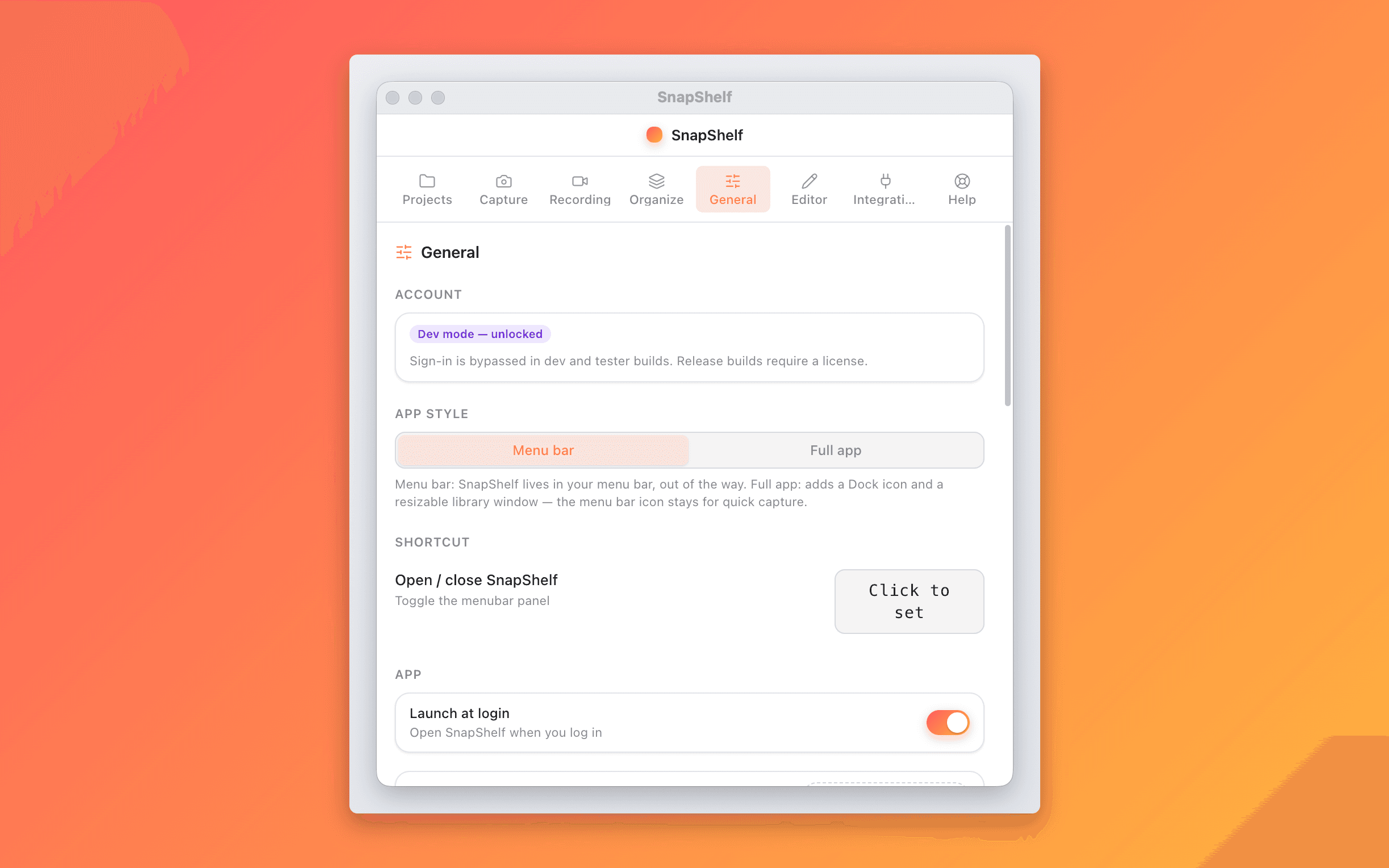
SnapShelf finds your running Claude CLI session and pastes the file path straight into it — Terminal or iTerm. Your agent gets the screenshot without you ever touching Finder.
- 1Right-click any capture → Send to Claude Code
- 2SnapShelf locates your live CLI session
- 3The path lands in your prompt. Keep typing.
Screenshot the bug, hand it to the agent, stay in flow.
Send to Codex
Same flow, same one click. If you've got several sessions open, SnapShelf asks which one.
Send to Jira, or any URL
Copies the image and opens your board's create-issue page, ready to paste. Add any URL target you like — Linear, GitHub, your internal tracker.
Every send copies to the clipboard first. You're never left empty-handed.
The workflow
Bug on screen → fix in progress, in four steps
- 1Press ⌃⌘S — draw a region around the broken element
- 2It auto-files to ~/Projects/app/screenshots
- 3Right-click → Send to Claude Code
- 4The path lands in your live CLI session. Ask Claude to fix it.
The screenshot never touches Finder, your clipboard, or your working memory. You never leave the terminal.
Permissions
Three permissions, zero mystery
The welcome guide walks you through all three on first launch. SnapShelf never reads your keystrokes — cursor data is timestamps only.
Screen Recording
To capture anything at all.
Accessibility
Powers cursor auto-zoom, auto-scrolling capture, and window-title routing.
Automation
Lets Send to Claude Code reach your terminal.
FAQ
Questions, answered
Everything you need to know before buying.
Yes — it’s the reason SnapShelf exists. Right-click any capture and choose Send to Claude Code, and SnapShelf finds your running Claude CLI session and pastes the file path straight into it, in Terminal or iTerm. If several sessions are open you pick one. Codex is simpler — it copies the file path for you to paste yourself. Either way the capture is on your clipboard first, so you’re never stuck. See how the Claude Code integration works →
See how SnapShelf stacks up against CleanShot X and Screen Studio, or check the roadmap.
Stop hunting for screenshots. Start shipping.
Every capture filed, annotated, recorded with cursor auto-zoom, and one right-click away from your Claude Code session. Free for 7 days, then $49 once — yours forever.
30-day money-back guarantee7-day trial, no cardOne-time purchase2 years of free updatesLocal-only datamacOS 13+ · Apple Silicon & Intel