Get the text out of a screenshot without retyping it
SnapShelf extracts text from any capture with one right-click — Copy Text (OCR) — and copies it to the clipboard, recognised on-device on macOS 13+ so no image is ever uploaded, included in the $49 one-time price.
Last updated
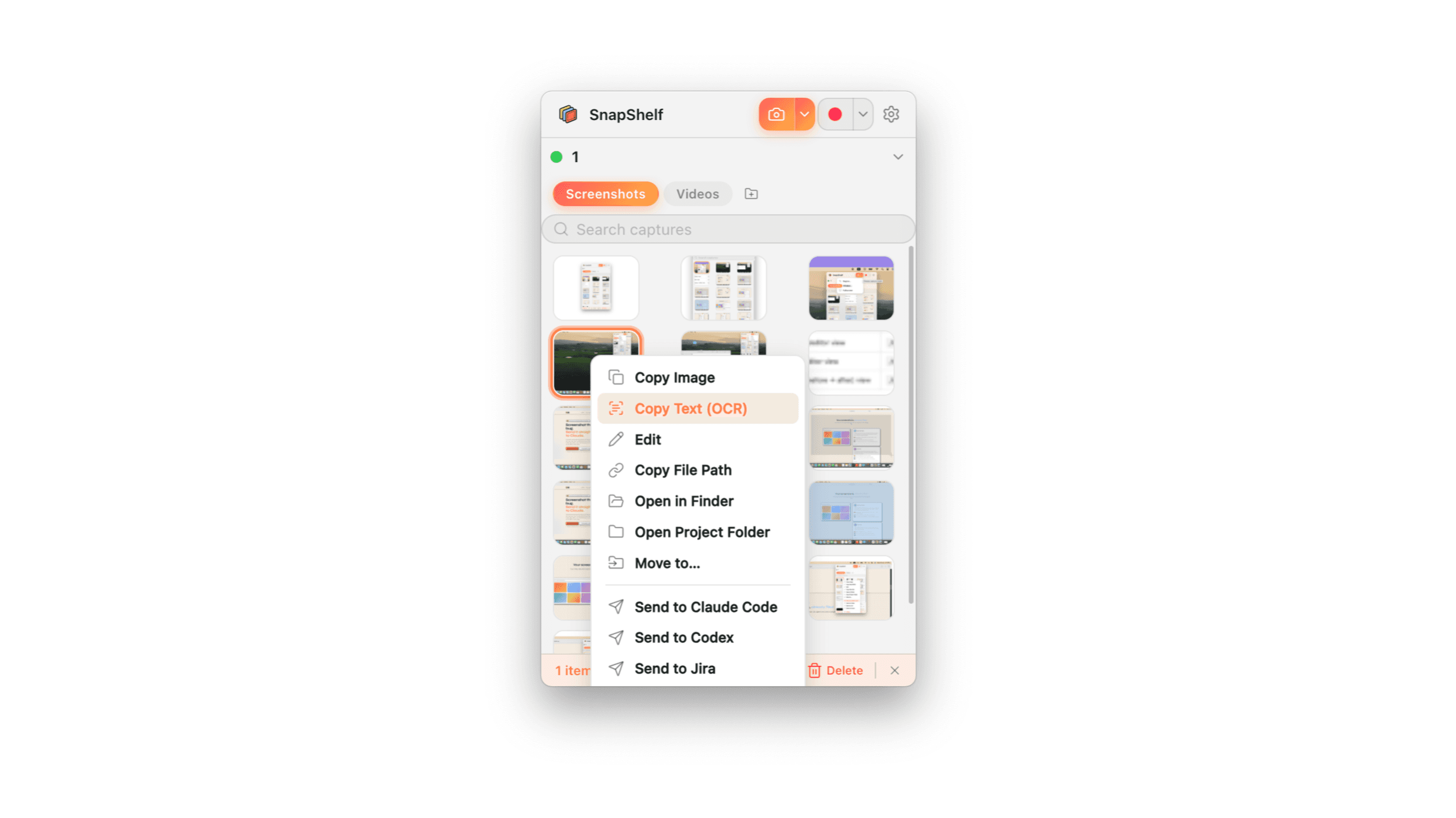
A screenshot of terminal output open in SnapShelf with the recognised text extracted and shown ready to copy.
The specific annoyance this removes
Someone sends you a screenshot of a stack trace. The exact line you need to search for is in there as pixels. You retype it, get one character wrong, search, find nothing, and retype it again. Multiply that by every error dialog, every terminal output pasted as an image into Slack, every screenshot of a config file, every receipt.
OCR in SnapShelf is one action on any capture — right-click the thumbnail and choose Copy Text (OCR) — and the recognised text lands on your clipboard ready to paste into a search box, a terminal, or a bug report. It works on the things developers actually screenshot: code, error dialogs, terminal output, log lines, and documents.
Where it lives matters more than it first appears. An OCR feature buried behind a mode switch or a separate window is a feature you will forget exists and retype the string instead. Sitting in the right-click menu of the thumbnail you are already looking at, two clicks from the capture, is close enough to become reflex.
On-device is a security property, not a marketing word
Recognition runs locally on your Mac, on a bundled tesseract.js engine. The image is not uploaded, not queued to a server, and not processed by a third-party API. That distinction is the entire difference between "a tool you can use on client work" and "a tool your security review will reject". One honest qualifier: the very first time you run OCR, SnapShelf downloads a language model of a few megabytes. After that it is offline. Your images still never leave the machine — the download is the model coming in, not your capture going out.
Think about what is actually in the screenshots you would run OCR on. API keys in a terminal. A customer’s email address in a support ticket. A production database URL in a stack trace. Internal pricing in a spreadsheet. A cloud OCR service is a perfectly reasonable product for photographing a menu; it is an unreviewed data-egress path for a screenshot of your production logs.
The same local processing is reused elsewhere in the app: when auto-filing cannot decide where a capture belongs from the window title alone, OCR reads the image itself as a fallback and routes on that. That is a second reason it has to be local — a routing decision that silently uploaded every ambiguous capture would be indefensible.
SnapShelf as a whole is local-first: captures, recordings, and exports stay in the folder you choose on your Mac, there is no content indexing, and there are no analytics on what you capture. The only network calls are the one-time licence activation and that first OCR language-model download.
- 1Select the capture in the SnapShelf gallery
- 2Right-click the thumbnail and choose Copy Text (OCR)
- 3The recognised text is extracted and copied to your clipboard
- 4Paste into your terminal, search field, issue tracker, or notes
macOS has Live Text built in — use it when it fits
Since macOS Monterey, Live Text has done image text recognition system-wide and on-device. Open a screenshot in Preview or Quick Look, and you can usually drag-select the text in the image and copy it like any other text. In Photos, Safari, and Quick Look it often just works. It is free, it is already there, and for a one-off it is the right tool.
Where it gets awkward is at volume and at precision. You have to open the file in an app that supports it, hover until the cursor changes, drag-select a region that may not correspond to a clean text block, and hope the selection grabbed the whole line. Selecting a multi-line stack trace out of a terminal screenshot by dragging is a fiddly operation, and there is no single keystroke that means "give me all the text in this image".
The honest summary: if you extract text from an image once a week, Live Text is sufficient and free. SnapShelf’s version is a separate engine — tesseract.js, not Apple’s — bound to one right-click on a capture already in front of you, integrated with the filing rules, and available on captures in the gallery without opening anything.
What the alternatives do here
Shottr — which is free — also does OCR, and does it well. If OCR plus fast still capture is your whole requirement, Shottr is an excellent answer and costs nothing. It stops at screenshots: no screen recording, no GIF export, no video editing, no auto-filing. That is not a flaw, it is the scope.
Xnapper ($17, verified July 2026, subject to change) does not do OCR; it is focused on making screenshots look good with polished one-click social presets. CaptureShelf ($15) does not do OCR either — it organises. Snagit does OCR as part of its $39/yr subscription and has years of refinement in step-capture and documentation workflows. CleanShot X has the deepest single-image annotation toolset of the group.
So OCR alone is not a reason to buy SnapShelf, and pretending otherwise would be dishonest. It is a reason to not need a separate tool for it once you are here for the recording, filing, and editing.
Try SnapShelf
Free for 7 days, then $49 once — 2 years of free updates, no subscription, and everything stays on your Mac. 30-day money-back guarantee.
No account, no card · macOS 13+ · Apple Silicon & Intel
FAQ
Questions, answered
Everything you need to know before buying.
No. Text recognition runs entirely on your Mac using a bundled tesseract.js engine. The image is never uploaded and there is no third-party OCR API involved. The one qualifier: the first OCR run downloads a language model of a few megabytes, after which it works offline. Beyond that, SnapShelf’s only network call is the one-time licence activation.
Stop hunting for screenshots. Start shipping.
Every capture filed, annotated, recorded with cursor auto-zoom, and one right-click away from your Claude Code session. Free for 7 days, then $49 once — yours forever.
30-day money-back guarantee7-day trial, no cardOne-time purchase2 years of free updatesLocal-only datamacOS 13+ · Apple Silicon & Intel