Screenshots that file themselves into the right project
SnapShelf is a $49 one-time macOS 13+ capture app that reads the frontmost app and window title at capture time and routes each screenshot into a matching project folder using rules you define, with on-device OCR as a fallback.
Last updated
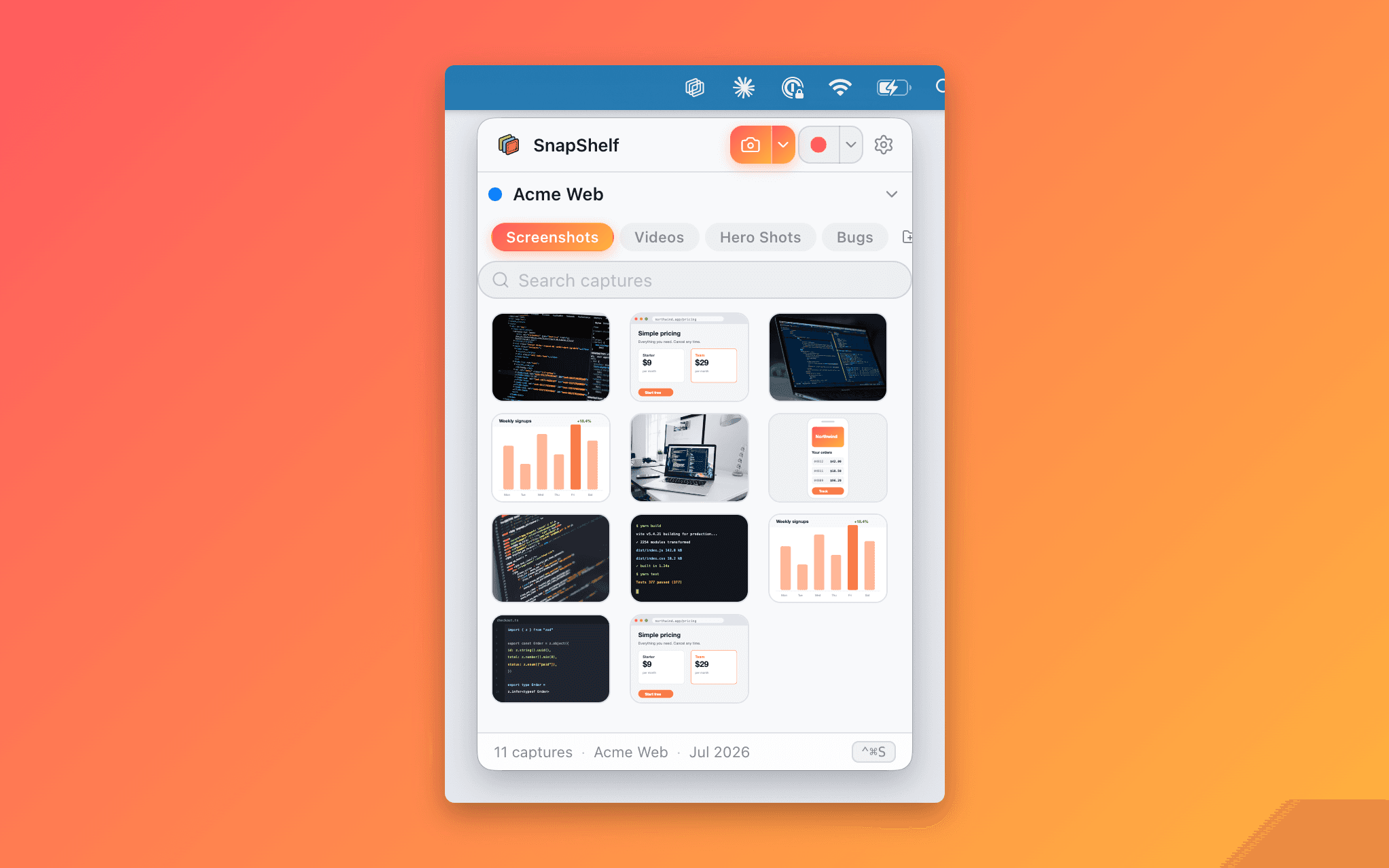
The SnapShelf gallery showing captures grouped into project shelves, with the search field filtering by project and filename.
The problem is not saving. It is finding.
Nobody has ever struggled to take a screenshot on a Mac. The struggle starts three weeks later, when you need the one showing the layout bug from the client review and your Desktop holds four hundred files named "Screenshot 2026-06-14 at 09.13.44.png". The filename encodes exactly one useful fact — roughly when — and you rarely remember when. You remember what app you were in and what you were working on.
Auto-filing inverts that. At the moment of capture SnapShelf already knows two things you would otherwise have to remember: which application was frontmost, and what that application had written in its window title. A window title is unusually rich metadata. Xcode puts the scheme and file in there. Figma puts the file name. Chrome and Safari put the page title. Slack puts the workspace and channel. Terminal puts the working directory.
You write rules against those two facts once, and the naming-and-filing decision you were making manually — or, more honestly, not making at all — happens without you.
How the routing decision is made
Each rule is a condition on the frontmost app or the window title, plus a destination folder. "If the frontmost app is Xcode, file to ~/Projects/MyApp/Screenshots" is the canonical starting point. Rules are evaluated when the capture completes, so the app you were in a second ago is the app that decides — not whatever gained focus while you were dragging the selection.
When the window title is not specific enough to decide, on-device OCR acts as a fallback: SnapShelf reads text out of the capture itself and routes on that. This matters for apps with unhelpful window titles, which is a large fraction of them. It runs locally like every other OCR operation in the app, so a fallback route never means uploading the image somewhere.
If no rule matches, the capture goes to your active project, into its default screenshots subfolder, rather than being dropped, misfiled, or silently held — and if you have not made a project yet, SnapShelf quietly creates one called "My Captures" and uses that. This is the part that makes the feature safe to adopt gradually. You are never in a state where a screenshot exists but you cannot find it — worst case it is in the active project, which is exactly where the Desktop used to be, only tidier. Files are renamed with a consistent timestamp format on the way in, so sorting a project folder by name sorts it by time.
Worth setting expectations on the first run: SnapShelf ships with no auto-filing rules at all. Nothing is routed anywhere until you write the first one, so the feature is opt-in by construction rather than something that starts rearranging your captures the moment you install it.
Reading window titles requires the macOS Accessibility permission. That is the same permission that powers scrolling capture and cursor auto-zoom, and it is worth understanding what it does and does not grant: SnapShelf reads window titles and cursor position and click timing. It never reads keystrokes and never records characters.
- 1Open SnapShelf Settings → Rules
- 2Add a rule matching the app you screenshot most — start with one, not twelve
- 3Point it at a real project folder, e.g. ~/Projects/MyApp/Screenshots
- 4Take a test capture with that app in the foreground and confirm where it lands
- 5Add rules for the next app only once the first one has survived a week of real use
What macOS gives you, and the ceiling it hits
macOS is not helpless here. Running "defaults write com.apple.screencapture location ~/Screenshots" followed by "killall SystemUIServer" moves every screenshot off the Desktop into a folder of your choosing, permanently and for free. If your only complaint is Desktop clutter, run that command and you are done — genuinely, do that instead of buying anything.
The ceiling is that it is one destination for all screenshots, forever. macOS has no concept of "this capture belongs to the client project and that one belongs to the side project". You can layer a Finder Smart Folder or a Folder Action or a Shortcuts automation on top, but every one of those runs after the fact, on a file whose only remaining metadata is a timestamp. The context — which app, which window, which project — was available at capture time and macOS threw it away.
That is the actual gap. Not "the Desktop is messy" but "the information needed to file this correctly existed for one second and nothing captured it".
Honest comparison: who else does this
CaptureShelf ($15 one-time, verified July 2026, subject to change) is the closest thing to a direct competitor for this specific job, and at that price it is a reasonable buy if organising is all you need. It keeps a tidy gallery of your captures. SnapShelf routes with more precision — app and window title with an OCR fallback into real folders on disk — and does the rest of the workflow, but if you want a shelf and nothing else, CaptureShelf is cheaper and deliberately minimal.
CleanShot X is the market leader for Mac capture and has the deepest single-image annotation toolset of anything here, plus cloud share links SnapShelf does not have. It does not auto-file captures into project folders. Neither does Xnapper ($17), which is focused on making screenshots look good, nor Shottr, which is free and superb but scoped to still capture. Snagit has years of refinement in long-form documentation workflows and runs on Windows too, at $39/yr since 2025.
So the trade is straightforward: if you want cloud share links today, CleanShot is the better fit and we say so on the comparison page. If you want captures to end up somewhere meaningful without you deciding, this is the differentiator.
Try SnapShelf
Free for 7 days, then $49 once — 2 years of free updates, no subscription, and everything stays on your Mac. 30-day money-back guarantee.
No account, no card · macOS 13+ · Apple Silicon & Intel
FAQ
Questions, answered
Everything you need to know before buying.
It goes to your active project, into that project’s default screenshots subfolder — and if you have not created a project yet, SnapShelf makes one named "My Captures" and files it there. Nothing is dropped or misfiled while you are still tuning rules, which means you can start with a single rule and expand over weeks rather than configuring everything up front. No rules ship by default, so nothing is routed until you write one.
Stop hunting for screenshots. Start shipping.
Every capture filed, annotated, recorded with cursor auto-zoom, and one right-click away from your Claude Code session. Free for 7 days, then $49 once — yours forever.
30-day money-back guarantee7-day trial, no cardOne-time purchase2 years of free updatesLocal-only datamacOS 13+ · Apple Silicon & Intel