Screen recording that starts and ends in the menubar
SnapShelf is a $49 one-time macOS 13+ menubar app that records your screen with microphone and system audio as independent toggles, then hands the clip straight to a built-in editor for trimming, GIF export, or MP4.
Last updated
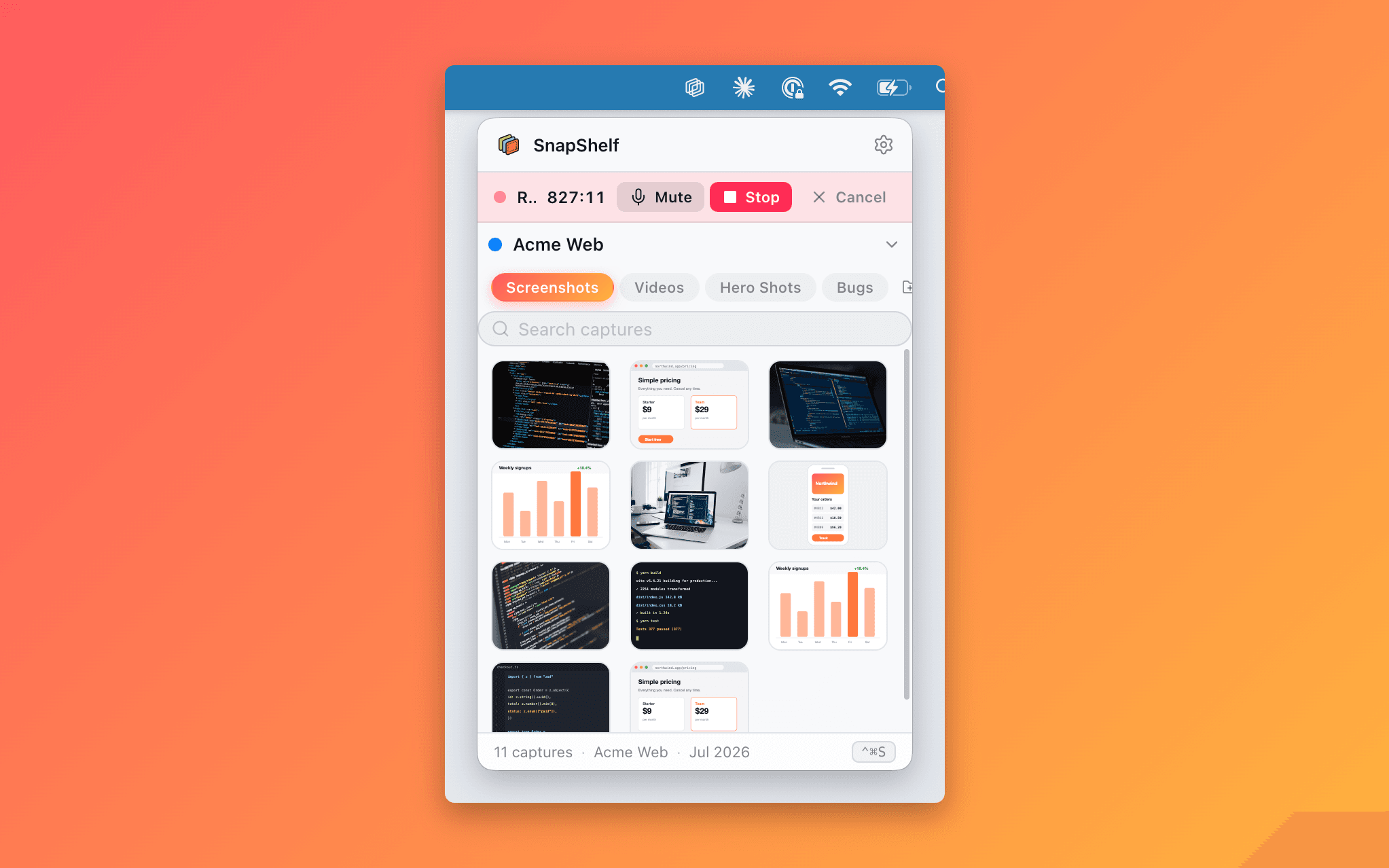
The SnapShelf recording panel in the macOS menubar, with separate microphone and system-audio toggles above the record button.
Two audio switches, and why that matters more than it sounds
Most screen recordings fail for the same boring reason: the audio was wrong. You narrated a walkthrough and the mic was off. You recorded a bug repro and your Spotify playlist went into the file. You captured a video-playback glitch and the system audio — the whole point of the recording — never made it in.
SnapShelf treats microphone and system audio as two independent switches rather than one "record audio" checkbox. The practical consequence is that three very different recordings come out of the same panel with one click of difference between them. Mic on, system off: a narrated demo where nobody hears your notifications. Both off: a silent bug repro you can drop into a GitHub issue without a colleague having to put headphones on. Both on: a tutorial where you talk over an app that also makes noise.
The switches live in the menubar panel, visible while you record. That visibility is the feature. The most expensive recording mistake is the one you discover ten minutes in, and a toggle you can see is a toggle you cannot get wrong silently.
One prerequisite is worth stating plainly, because no Mac app can route application audio without it: the system-audio switch needs a virtual loopback device — BlackHole or an equivalent — installed on your Mac. SnapShelf ships a guided setup that downloads BlackHole on demand, detects it live, shows a level meter so you can confirm sound is arriving, and walks you through building a Multi-Output Device. Without one present, a recording quietly falls back to the microphone alone.
What macOS already gives you for free
Be clear-eyed about this before you spend anything. macOS has shipped a competent screen recorder since Mojave. Press ⌘⇧5 and you get a capture toolbar with "Record Entire Screen" and "Record Selected Portion", a five- or ten-second timer, and a microphone picker. QuickTime Player does the same job with a File → New Screen Recording menu item. Both write a .mov to your Desktop and both are genuinely fine for a quick clip.
Where it stops is specific and worth naming. The built-in recorder captures your microphone but not your system audio — macOS does not route application audio into ⌘⇧5 without a third-party audio driver. So the one recording you most often need for a support ticket, the one where the app makes a sound, is the one macOS cannot make. Second, everything lands on the Desktop as "Screen Recording 2026-07-20 at 11.42.13.mov" whether you wanted it or not. Third, the only editing you get is trimming the head and tail in QuickTime.
If your recordings are occasional, silent, and immediately uploaded somewhere, ⌘⇧5 is the correct answer and you should stop reading. SnapShelf is for the case where you make these several times a week and the file has to go somewhere specific, in a specific format, quickly.
How a recording actually moves through the app
The recording panel is a tab in the same menubar popover you take screenshots from, so there is no separate app to launch and no Dock icon to hunt for. Recording requires the macOS Screen Recording permission — SnapShelf cannot capture anything at all without it, and the welcome guide walks you through granting it on first launch.
When you stop, the clip does not vanish into a folder. It lands in the gallery alongside your screenshots, auto-filed by the same rules engine that routes your captures — or, until you have written your first rule, straight into your active project — and it is immediately openable in the editor. Trimming is optional — if the raw take is good, export it and move on. If it is not, Auto-Edit will strip the silent gaps in a click and the multi-track timeline is right there.
Exports are MP4 — H.264 video with AAC audio at 192 kbps, written faststart so it plays while it downloads — and, from the library, one-click optimised animated GIF for anything headed to a GitHub issue or Linear ticket. The export lands in your chosen folder and goes onto the clipboard at the same time, which removes the "now find the file and drag it in" step that breaks the flow of writing a bug report.
- 1Open the SnapShelf menubar panel and switch to the Record tab
- 2Set the mic and system-audio toggles for the kind of recording you want
- 3Hit Record and work normally — the toggles stay visible so you can see what is being captured
- 4Hit Stop; the clip is auto-filed into the gallery and ready in the editor
- 5Export as MP4, or Export → GIF for a bug tracker — either way it is also on your clipboard
Where other recorders do this better — and worse
Screen Studio ($89 one-time, verified July 2026, subject to change) is the honest benchmark for produced-looking recordings. It has years of focus on that single job, deeper motion-polish presets, automatic device frames and wallpaper-style backgrounds, and iOS device recording workflows that SnapShelf does not have. If your output is marketing video and nothing else, that focus shows.
CleanShot X ($29 one-time plus $19/yr for continued updates, verified July 2026) records and exports GIFs, but it has no timeline editor and no cursor effects. You get the clip; you do not get a place to fix it. Shottr, which is free and excellent at still screenshots, does not record at all. Snagit records with audio and is the one competitor here that also runs on Windows, but since 2025 it is a $39/yr subscription rather than a purchase.
SnapShelf’s position is deliberately not "best recorder". It is that the recorder shares a panel, a gallery, a filing system, and an editor with your screenshots, for $49 once with 2 years of free updates. If you already own a recorder you like and only need it monthly, keep it.
Try SnapShelf
Free for 7 days, then $49 once — 2 years of free updates, no subscription, and everything stays on your Mac. 30-day money-back guarantee.
No account, no card · macOS 13+ · Apple Silicon & Intel
FAQ
Questions, answered
Everything you need to know before buying.
Yes, with one prerequisite. Microphone and system audio are independent toggles in the recording panel, so you can record app audio without your voice, your voice without app audio, both, or neither — but the system-audio side needs a virtual loopback device such as BlackHole, which SnapShelf downloads on demand and sets up with a guided flow. Without one, recordings fall back to the microphone. This is still the main gap in the built-in ⌘⇧5 recorder, which captures the microphone but not application audio.
Stop hunting for screenshots. Start shipping.
Every capture filed, annotated, recorded with cursor auto-zoom, and one right-click away from your Claude Code session. Free for 7 days, then $49 once — yours forever.
30-day money-back guarantee7-day trial, no cardOne-time purchase2 years of free updatesLocal-only datamacOS 13+ · Apple Silicon & Intel