A real timeline editor, attached to your screen recorder
SnapShelf includes a multi-track non-linear video editor for macOS 13+ with trim, split, per-clip speed, WYSIWYG crop, colour grading, text and image overlays, music and voiceover on their own independent audio lanes with fades, and five aspect-ratio options — included in the $49 one-time price.
Last updated
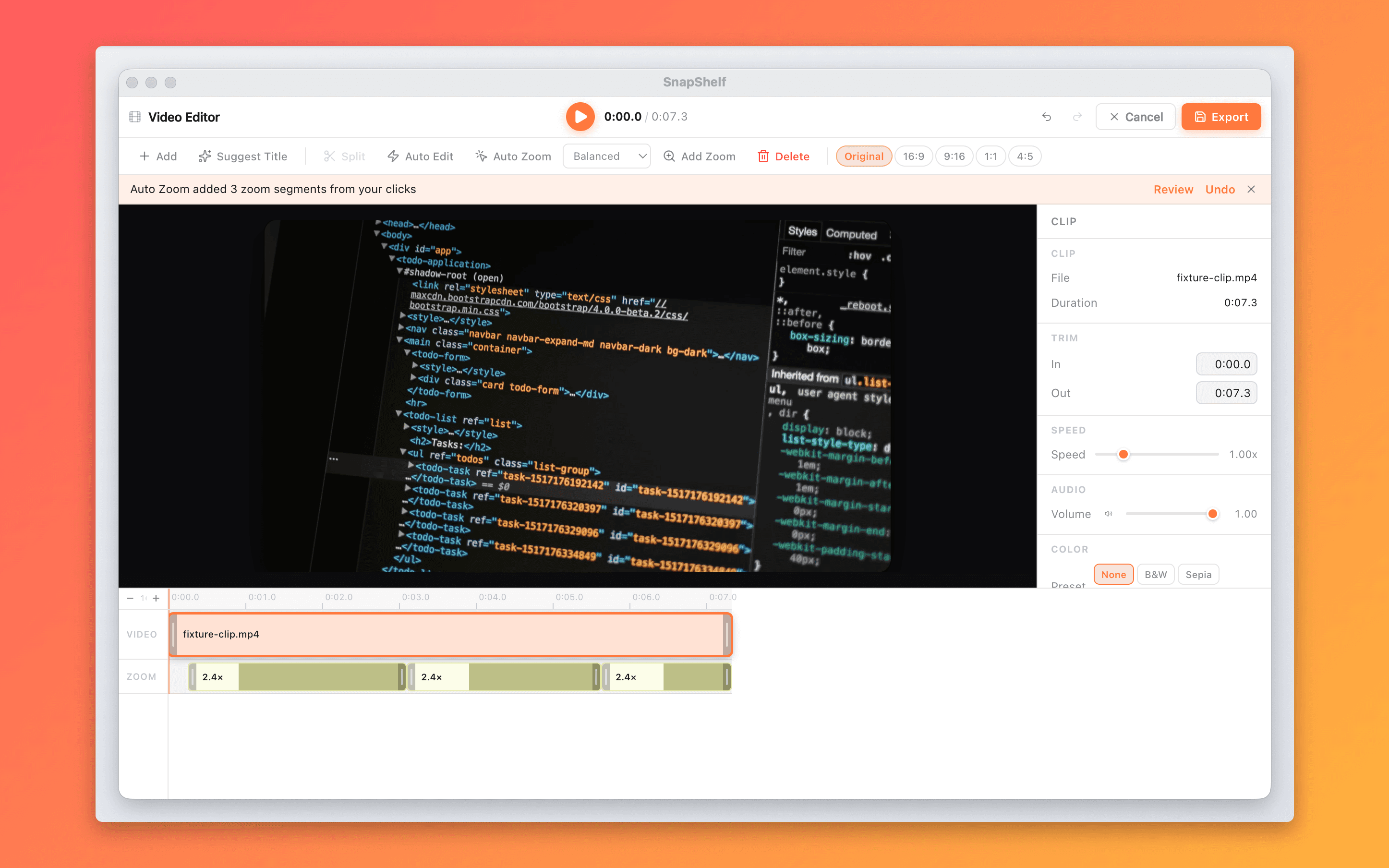
The SnapShelf multi-track timeline with a video clip, a music track, and a voiceover track, and the crop and colour controls in the inspector.
The round trip is the cost
The reason most screen recordings ship unedited is not that people lack editing skill. It is that editing means exporting a file, launching a separate application, importing, waiting, working, exporting again, and then finding the result. That round trip costs five minutes of overhead before a single cut is made, and five minutes of overhead is enough to make "good enough" win every time.
SnapShelf’s editor removes the round trip rather than the work. You stop a recording, click Edit, and the timeline is already populated with the clip you just made. Nothing was exported and nothing was imported. The distance between "that take had a bad thirty seconds in the middle" and "that take no longer has a bad thirty seconds" is one split and one delete.
This is the whole design argument. A slightly less powerful editor you actually use produces better output than a more powerful editor you skip.
What is actually on the timeline
The video side covers trim, split at the playhead, reorder, and per-clip playback speed — so you can hold real time for the important moment and run 4× through the boring install step. Crop is WYSIWYG rather than numeric, which matters when you are cropping to hide a sidebar rather than to hit an exact pixel dimension. Colour grading sits alongside six filter presets — none, black and white, sepia, vivid, warm, and cool — and all of it is per clip, as are 44 transitions: 5 fades, 8 wipes, 4 slides, 4 smooth, 8 shapes, 4 diagonals, 4 slices, and 7 FX.
The audio side is not one track: background music and voiceover each live on their own independent lane, as many as you care to add, every one with its own volume, fade-in, and fade-out — on top of each video clip’s original audio. That structure is what lets you re-narrate a take without re-recording it — drop the original audio to zero, record the voiceover against the picture, and duck the music under both.
Text and image overlays sit above the video track, and output offers five aspect-ratio options — Original, 16:9, 9:16, 1:1, and 4:5 — with a choice of black, solid colour, gradient, or blurred-video letterboxing when the source does not match the target frame. That last option is the one that makes a 16:9 desktop recording look deliberate rather than mangled in a 9:16 vertical slot.
Auto-Edit is the shortcut worth knowing about before you start cutting manually: it detects silent gaps — anything under -30 dB for at least 600 ms, a fixed threshold with no dial to turn — and removes them in one click, which turns a rambling ten-minute walkthrough into a tight three before you have made a single decision yourself. Two things to know before you run it: it analyses the first clip only, and it replaces every clip in the project, which is why the app asks you to confirm. Review it, then edit from there.
- 1Open a recording from the gallery and click Edit
- 2Run Auto-Edit first to strip silent gaps, then review the result
- 3Drag the timeline handles to trim, or press Split at the playhead to cut mid-clip
- 4Add background music or a voiceover on their own tracks and set the fades
- 5Pick the target aspect ratio and letterboxing style, then export as MP4
What macOS gives you free, and where it runs out
QuickTime Player edits video, and people forget how much. It trims (⌘T), splits a clip at the playhead (⌘Y), lets you reorder and delete segments, and can add a clip to the end of another. For cutting the dead air off the front and back of a screen recording it is fast, free, and already installed. Use it for that.
It runs out at anything involving a second layer. No text overlays, no music track, no independent volume, no colour adjustment, no cropping, no aspect-ratio change, no transitions between segments. Its concept of audio is whatever came with the clip. And its export options are limited to a handful of fixed presets.
iMovie is the next free step up and is genuinely capable — multiple tracks, titles, transitions, music. The friction is that it is built around a project library that wants to own and copy your media, its aspect-ratio handling is opinionated, and it is a separate app you have to import into. For a five-minute tutorial that is fine. For the fourth bug walkthrough this week it is the round trip again.
Against the competition, plainly
Screen Studio ($89 one-time, verified July 2026, subject to change) has deeper motion-polish presets than SnapShelf and automatic device frames and wallpaper-style backgrounds for recordings. Its years of focus on produced screen video show in the defaults. If your job is making marketing-grade product video and nothing else, that is a fair $89.
CleanShot X has no NLE at all. It offers basic video and GIF export and no timeline, so any real edit means leaving the app. That is not a knock on CleanShot — it is a still-image tool with video attached, and its annotation depth is the best here — but it does mean a CleanShot-plus-Screen-Studio pairing is $118 to cover what SnapShelf covers at $49. Shottr and Xnapper do not edit video. Snagit does, as part of a $39/yr subscription since 2025.
The trade you are making with SnapShelf is presets and polish depth in exchange for the editor being zero steps away from the recorder, and for not paying twice.
Try SnapShelf
Free for 7 days, then $49 once — 2 years of free updates, no subscription, and everything stays on your Mac. 30-day money-back guarantee.
No account, no card · macOS 13+ · Apple Silicon & Intel
FAQ
Questions, answered
Everything you need to know before buying.
Background music and voiceover go on their own independent lanes — as many as you add — each with its own volume, fade-in, and fade-out, on top of each video clip’s original audio. That lets you re-narrate an existing take without re-recording the screen.
Stop hunting for screenshots. Start shipping.
Every capture filed, annotated, recorded with cursor auto-zoom, and one right-click away from your Claude Code session. Free for 7 days, then $49 once — yours forever.
30-day money-back guarantee7-day trial, no cardOne-time purchase2 years of free updatesLocal-only datamacOS 13+ · Apple Silicon & Intel